MTK USB Driver is a Windows USB host controller program that helps to recognize the MediaTek MTK-based smartphones to the Windows computer and allows for flashing, unlocking, and repairing the phone easily. Once you have installed the USB Driver, it makes it possible to detect any MTK-based smartphone on a Windows computer.
Through this page, We have shared the step-by-step installation processes along with the links to download Mediatek Android Auto Installer Driver latest version on Windows 11, 10, 8, 7, and XP (32 & 64-bit).
Do check: SPD USB Driver Download (All) Spreadturm for Windows (2023) Latest
Download MediaTek MTK USB Driver Latest Version for Windows
| File Name | Mediatek_DRIVERS.ZIP |
| Views | 5000 |
| Size | 14MB |
| Type | Zip file |
| Architecture | 32 & 64 bit |
| Supported OS | Windows 7/ 8/8.1/ 10 |
| Driver 32Bit | Download |
| Driver 64Bit | Download |
| Manual Driver | Download |
Download MediaTek USB VCOM, Preloader latest version supports up to Win 10, Win 11 (x32 & x64 bit). The drivers work both on Installer & manual method and it is 100% working and fully verified no need to worry about viruses or malware.
- It is applicable only for MTK powered Android & feature phones.
- Install ADB drivers on your computer.
- Required a good USB cable.
More: Download Libusb Win32 Driver Latest Version 2022 | New Update
What is MTK Driver?
MediaTek USB Driver developed mainly for MTK-powered phones to be detected on Microsoft Windows easily. If you want to unlock MediaTek MTK-powered smartphones like Oppo, Realme, Vivo, and Xiaomi Redmi, through VCOM/CDC/Preloader port then the USB driver is the much-needed file to encounter any connection-related issues on Windows.
The driver mainly creates a bridge between PC and phone, which you can be used to connect your phone for flashing, updating, upgrading, and transferring personal files from any MTK powered phone. It also helps to fix the soft or hard bricking issue, stuck on boot logo issue, or data transferring issue for free.
Note: These drivers are compatible with all versions of Microsoft Windows 7, Windows 8, Windows 10, Windows 11 version (32 & 64bit).
It becomes easier to flash stock firmware files or any other custom files using ADB & Fastboot Tools like, Nokia OST Tool, AFT Tool, Vivo ADB Tool, SP Flash Tool, MTK Unlock Tool, MTK FRP Tool, FRP Bypass Tool, Miracle Box, MCT Bypass Tool, MRT Tool, CM2 MTK Tool & UMT Mtk Tool with the USB driver.
How to Install MTK USB Driver on Windows?
Here we share with you three different methods to install MTK Android Drivers on any Windows 32 and 64bit PC. The first method we share here is an automatic method by simply using the setup wizard.
Method 1 : Automatic Installation
- Download the USB drivers according to your PC’s OS architecture (32-bit or 64-bit).
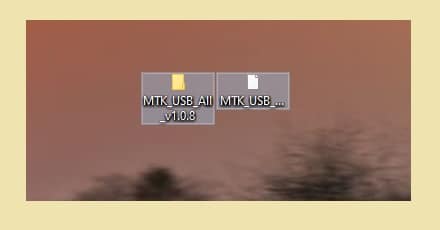
- Then open the folder and extract the downloaded file.
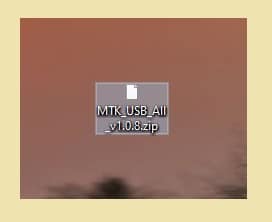
- Then Open the folder, and double click to run the setup.exe.
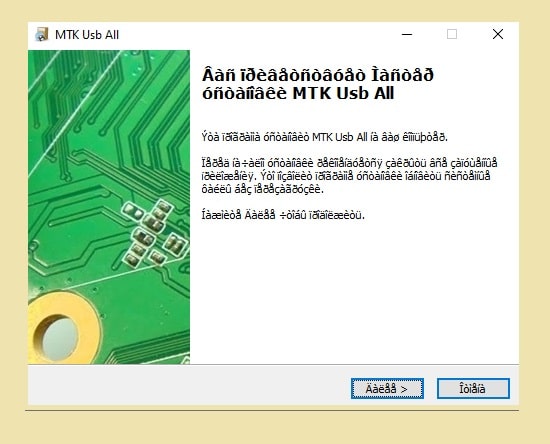
- Then click on the Next button.
- Accept the Terms in the license agreement by clicking on I Accept the terms in the license agreement option.
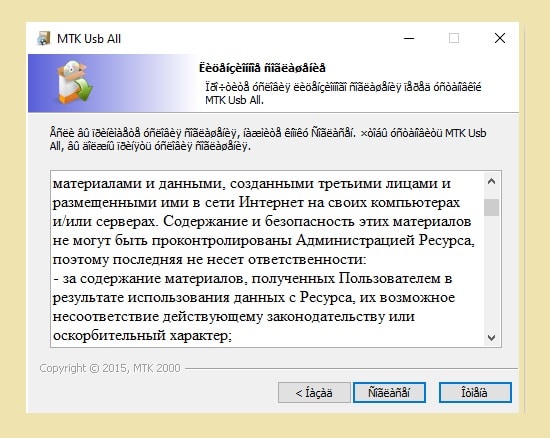
- Tap on the Next.
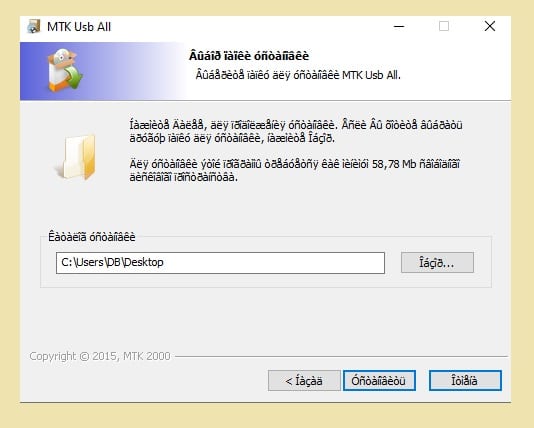
- Now click on the “Install‘.
- Wait for a few seconds to complete the Installation.
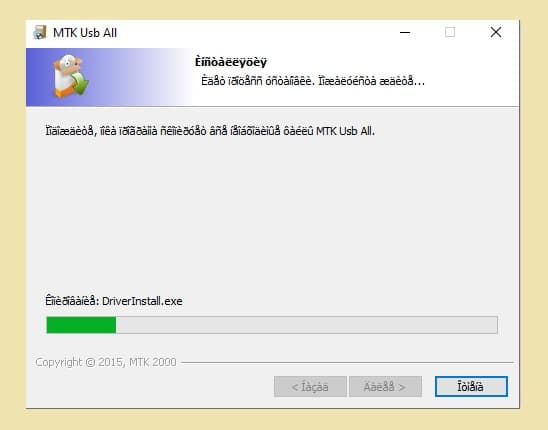
- Once Installation is completed then click on the finish button to exit the InstallShield Wizard.
- That’s it.
Manually Installation on Windows
- Open the Control Panel > Device Manager on your Windows PC.
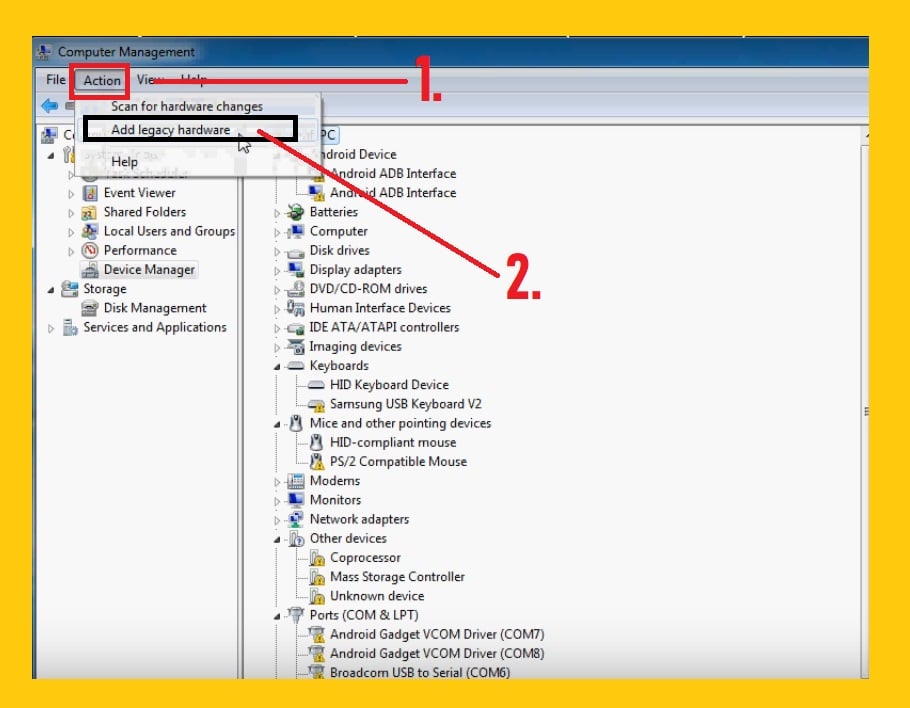
- Now click on the Action =>> Add legacy hardware.
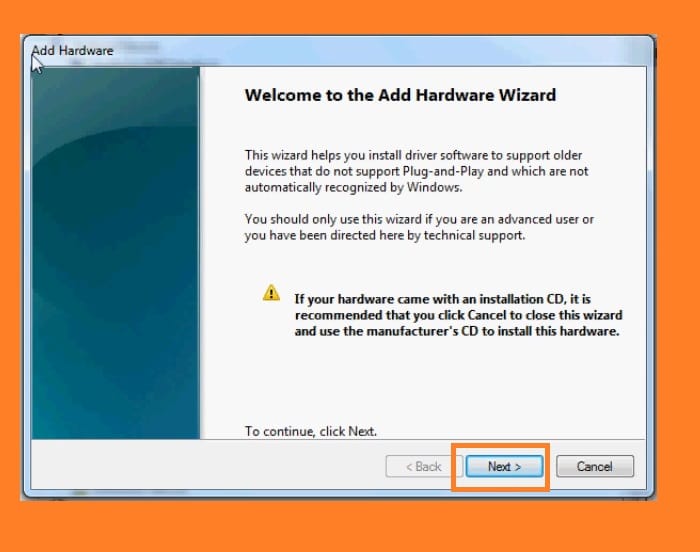
- After that, a new popup will be opened, click on the “Next” button from there.
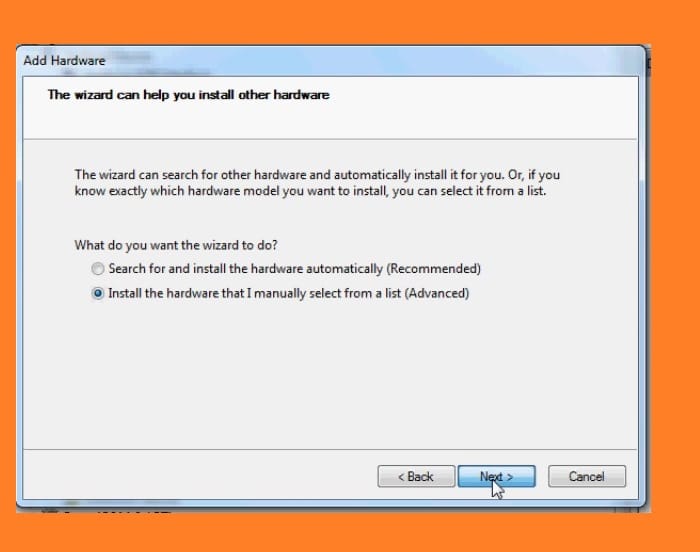
- Then select on the “Install the hardware that I have manually select from a list (Advanced)” and click on Next.
- Now select “Show All Devices” and then click on Next.
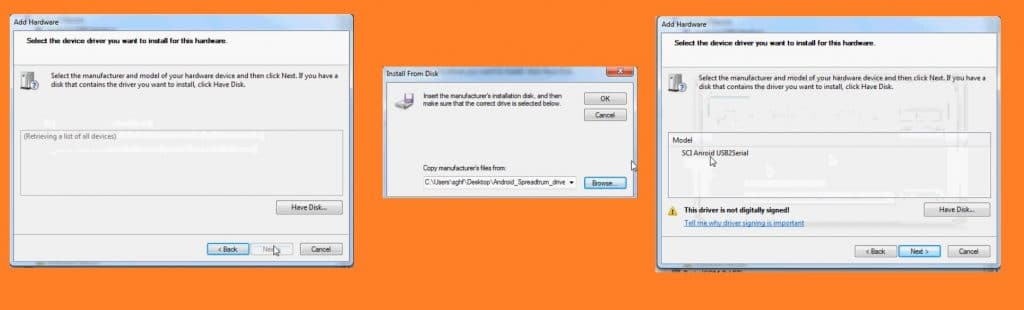
- After that, Another popup will be opened, click on Browse.
- Now select the downloaded driver files there.
- Once selected then click on the “OK” button.
- Then you will be going back to the Add Hardware popup, and click on the Next button from there.
- Again click on the Next button and wait for a few seconds.
- That’s it.
How to Update USB Driver
- Open the Control Panel > Device Manager on your Windows PC.
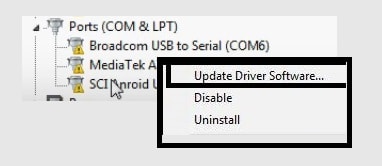
- If there you will see “SciU2S” under the device manager.
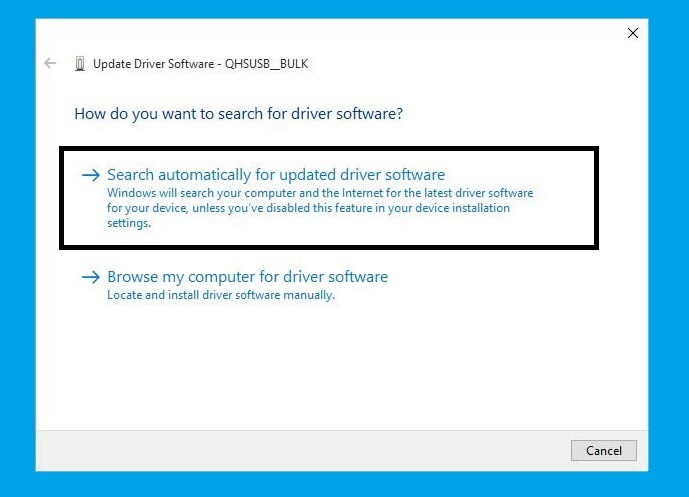
- Then right-click on the “MediaTek Com“, then select the “Search Automatically Updated Driver Software“.
- Then the windows will automatically find the right USB driver for your device.
- Wait for the finish.
- That’s it.
Also Check:
- Oppo Preloader Driver For All Oppo MTK Devices
- Vivo Y81i Pattern Unlock
- Download FRP Bypass Tool
- Android Multi-Tool
- Download Qualcomm HS-USB QDloader 9008 Driver
Fix Driver Signature Verification (Installation error)
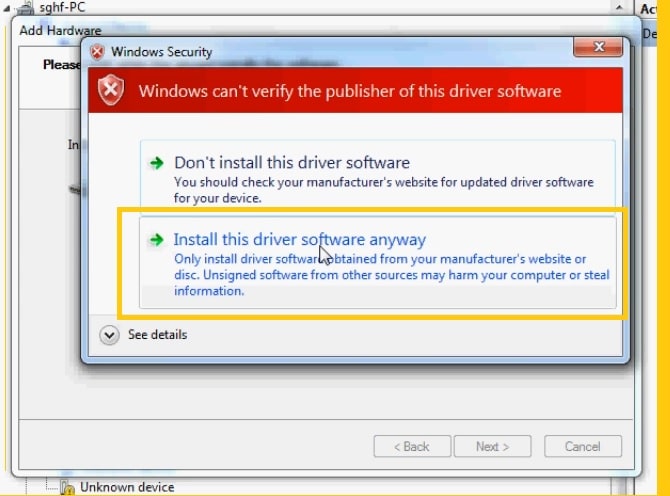
If you facing driver installation error or driver signature verification error then the following steps will help you to fix the issues, Turn off the Driver Signature Verification on Windows 8 or later versions PC.
- Open Command Prompt (CMD) on your PC
- Copy & paste the below code in the CMD window:
bcdedit /set testsigning on- Now reboot your PC to enter Test Mode
- Exit the Test mode by entering the below code:
bcdedit /set testsigning offRead Me:
[*] Take Backup: If you need to use the USB driver for flashing stock Rom on your MediaTek phone, then it is highly recommended you to take a complete backup of your phone.
[*] Qualcomm Flash Tool: If you looking USB Driver for flashing or unlocking the phone, then hjead over our Flash tool page to flash your MTK-powered devices. i.e., SP Tool, SP Flash Tool, and MTK FRP Tool.
[*] Other Drivers: Also, Here we have provides the other USB drivers for all Android devices and chipsets, Head over to our USB driver section. i.e., MTK USB Driver, SPD USB Driver, Oppo QcomMTK USB driver.
[*] Credit: The driver we are shared here are provided by MediaTek Technologies, Inc. So, special thanks to the official developers for sharing such useful USB Driver for free.
I think all you found the article of use. If you are still stuck in some steps or could not understand anything relating to this topic, you can let us know in the comment section below. we will help you as soon as possible. if you have any queries or suggestions or want us to write on something.

