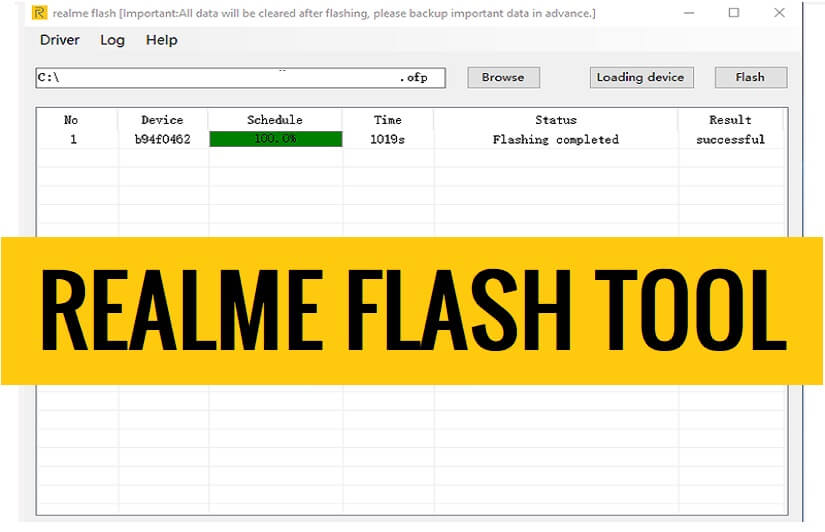
Realme Flash Tool helps you to flash stock firmware files on Realme Android devices. Also, It is allows you to fix boot loops or downgrade, remove screen lock, repair stuck-on device logo, etc. In this post, we provide to download Realme Flash Tool V2.0 latest version setup, and the instructions to use it on a computer easily.
If you want a hassle-free solution to restore a hard or soft-bricked, stuck at boot logo (Doesn’t boot up), flash, unlock, repair, or upgrade & downgrade the OS of your Realme Android phone then such flash tool can help you to fix the issue easily.
What is Realme Flash Tool?
Realme Flash Tool is an after-sales stock firmware flash program crafted by Realme to install or flash stock ofp firmware files on any Realme smartphones & tablets within a few minutes easily.
Nowadays, smartphones become an integral part of our daily lives, So, it is natural to face issues such as software glitches, boot loops, stuck-at-boot logo, etc, with smartphones.
The Factory Reset can fix it temporarily but this is not a permanent solution. So, flashing is the only solution to fix the issues permanently. But, Realme stock firmware ROM comes with the ofp formats so, how do you flash it?
The procedure of using the tool is quite simple, all you have to do is run the tool on your PC, then select the ofp stock firmware, Then Click on the Start button, Now Power Off your phone, and connect to the computer, that’s it.
More: Download Xiaomi Mi Flash Tool Latest Official All Version Setup Free
Download Realme Flash Tool V2 Latest Version Setup
Download Realme Tool V2.0 latest version along with all versions and it is compatible with every Windows 8, 10, and 11 (32bit & 64-bit) architecture OS version to flash or unlock the Android phone easily for free.
| Tool Version | Link |
|---|---|
| Realme_Tool V2.0 [Latest] | Download |
| Realme_Tool v1.0.0.3 | Download |
| Realme_Tool v1.0.0.4 | Download |
It can support Realme X50 Pro, Realme X2 Pro, Realme X2, Realme X, Realme 3, and Realme 3i Realme C1, Realme 1, Realme 2, Realme 2 Pro, Realme 3, Realme 3 Pro, Realme 5, Realme 5 Pro, Realme X, Realme XT, and Realme U1, Realme X2 Pro, Realme Narzo, Realme 9 Pro, Realme 9, Realme GT Neo 2, Realme GT Neo 3, and other Realme Phones.
How to use
- Download & extract the Realme Flash Tool to your Computer.
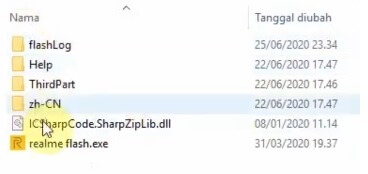
- Then open the folder & run Realme_Aftersales.exe
- The tool will launch on your PC
- The tool only works with unlocked bootloader devices, so unlock the BL first.
- The Power off your Realme phone
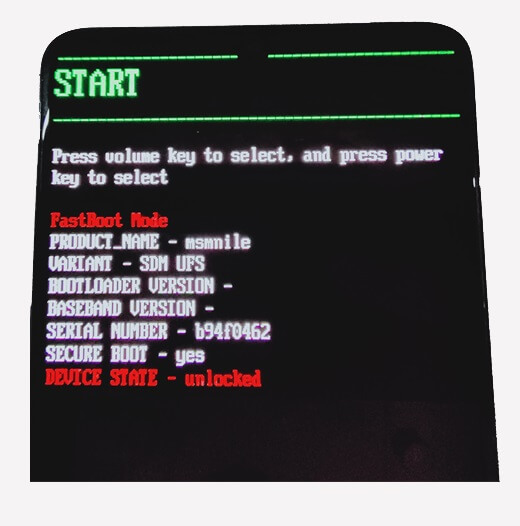
- Put your device into the Fastboot mode
- Press the Vol – & Power key, until your device boot into the Fastboot mode
- Download & extract the Flash File on your pc
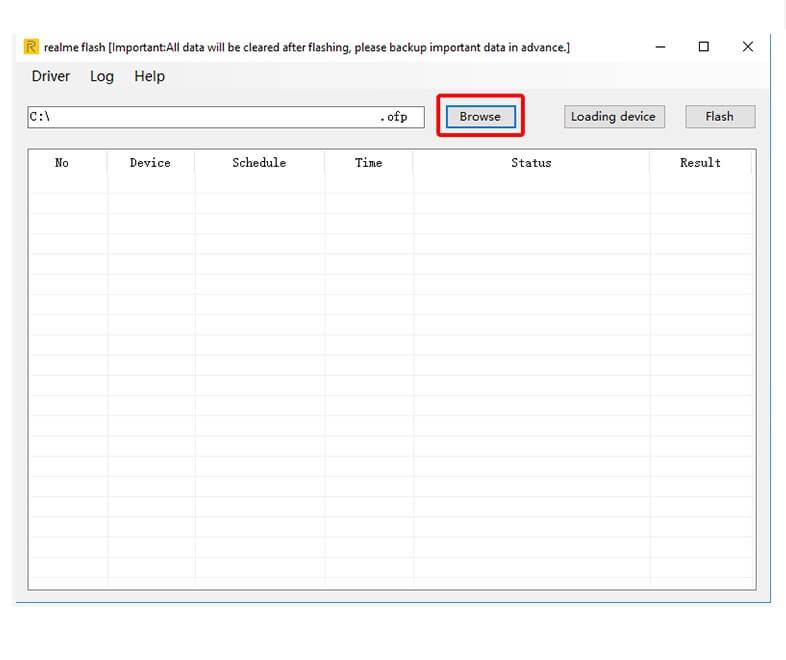
- Go back to the flash tool, Click on Browse
- Select the .ofp Firmware from the extracted folder
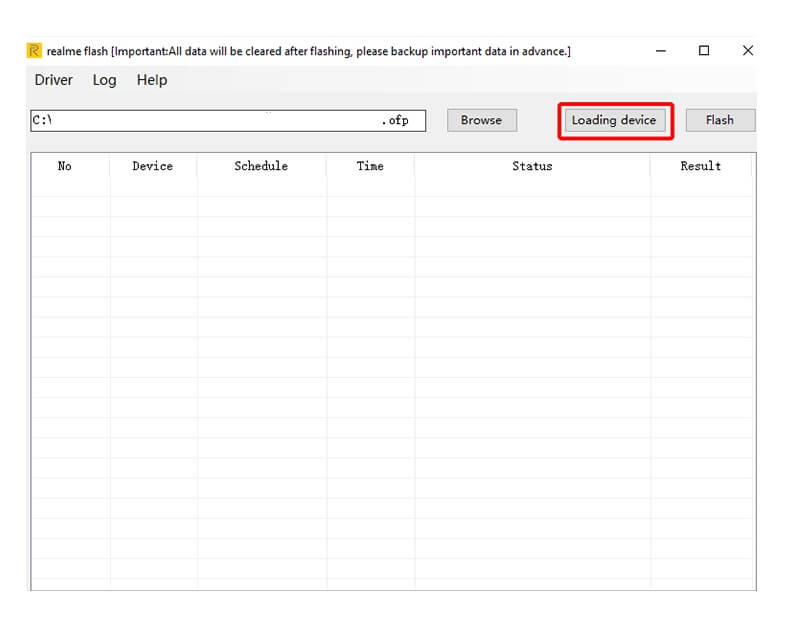
- Then Click on Loading Device
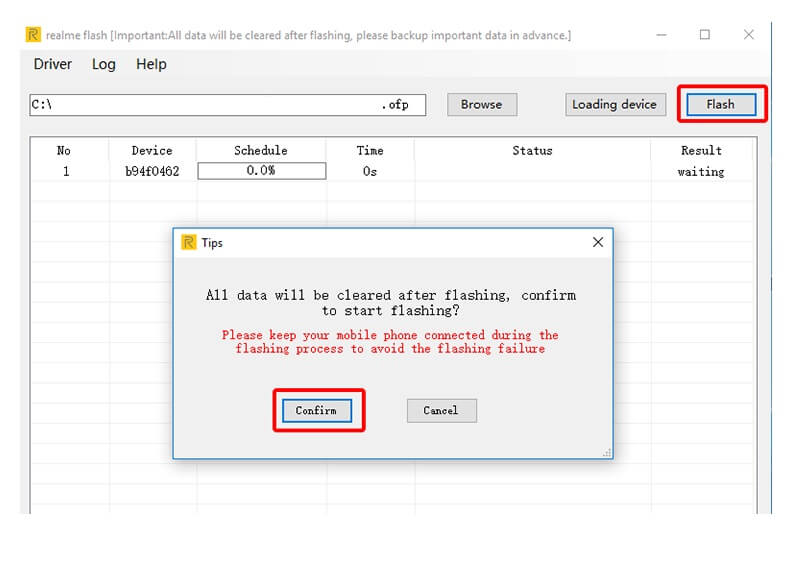
- Now click on Flash ==>> Confirm
- The flashing process will begun
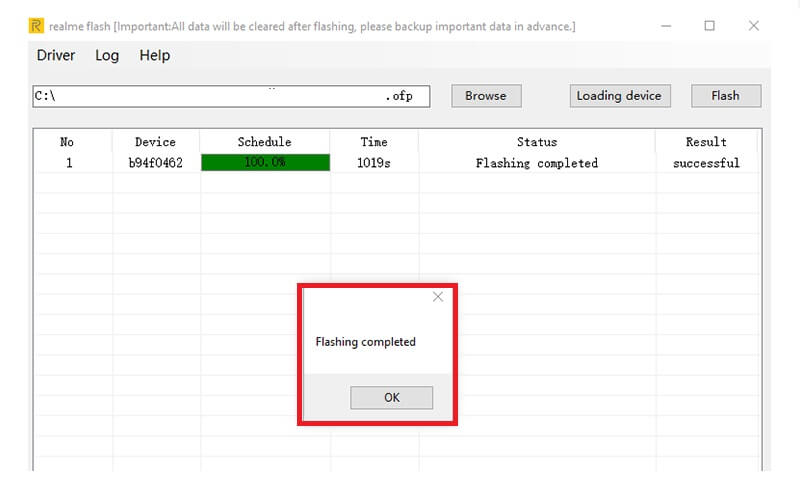
- Once you get the success message
- Then disconnect your Realme Device and Powered it on
- That’s it.
Read More: Download SP Flash Tool | Smartphone Flash Tool V6, V5, V3, Latest All Version Free
