Oppo Flash Tool is a utility software that lets users flash stock firmware files on any Oppo and Realme phone easily. Additionally, The flash tool also allows users to remove screen lock, repair to stuck at Oppo logo, upgrade, downgrade, in one click. So, follow these simple steps and download the Oppo MSM download tool latest version for Windows computers to flash Oppo Qualcomm & MTK phones from below.
If you facing any Software issues on your Oppo phone then Oppo Flash tool surely help you to fix the phone. In this article, we share with you a detailed guide about How to use the Oppo Flash Tool to flash Oppo devices and fix the phone within a few minutes easily.
The Tool also helps you to remove screen lock & FRP lock from any Oppo Realme Qualcomm & MTK powered phones. However, It’s an aftersales flashing tool only available at Oppo official servicing centers. That’s why you can’t install it directly on your Windows computer. You have to install an internal license file to use it properly.
Check: MSM Download Tool Latest 2023 (All Version) Free Setup Download
Oppo Flash Tool Summaries
Nowadays, Most Android users facing problems like Stuck at bootlogo, DRL errors, Slowness, forgotten Pattern Password, and FRP lock with Android their smartphones. This mainly happens due to negligence and trying to customize the phones by rooting or flashing custom files & recoveries.
The Factory Reset can fix it temporarily but this is not a permanent solution for this. So, flashing is the only solution to fix the issues permanently.
If you have proper knowledge about flashing then you can flash Oppo ROM using Flash tool quite easily. However, if you don’t have proper knowledge then you have to be very careful and following the process completely because an error flashing can damage the phone. Now, let’s take a look at some most useful features & supported devices list from below.
Here I share some best features that make this better than all other premium flash tools available on the internet.
- Supported Oppo and Realme Phones: The flash tool supports any Oppo and Realme smartphones and tablets. You can see the supported devices list below:
- Devices Supported: Oppo Find X, Realme 1, Realme C1, Realme 2, Realme 2 Pro, Realme 3 & 3 Pro, Realme 5 & 5 Pro, Realme X, Oppo Reno, K3, F11 & F11 Pro, Oppo A1, A3, A37, A37f, A39, A57, A71, A77, Oppo A77 (Mediatek), A83, R11s Plus, R11s, R11 Plus, R11, Oppo F1s, F3, F3 Plus, F5 & F5 Youth, Oppo F7 & F7 Youth, R9s Plus, R9s, R15 Pro, R15.
- Unbrick Oppo and Realme Phones: You can also use this tool to unbrick your Realme Oppo Qualcomm & MTK phone by flashing the particular official firmware flash file.
- Unlock Oppo and Realme Phones: If you want to unlock forgotten screen lock from your phone, then you can use the Oppo MSM Download tool to unlock any Oppo smartphone.
- Simple UI: It comes with a simple UI (User Interface). So that’s why anyone can use this tool easily.
Download Oppo Flash Tool Latest Version Free
Download Oppo Flash Tool latest version with Activation ID and Password to your computer for free, just follow the complete below process to activate it easily.
First, Download these two below files then configure them properly on your computer. But make sure, your PC meets the minimum system requirements to install and work with this Oppo Flash setup file.
| File Name | Link |
| Oppo_Download_Tool_Enabler(2023).rar | Download |
| Oppo_Download_Tool(2019).rar | Download |
| Password | bypassfrpfiles.com |
Once you downloaded all the requires files then read the below configuration procedure to install it on your computer.
Compatibility
Oppo MSM Download Tool is compatible with any Windows platforms: Windows 11, Windows 10/ Windows 8.1/ Windows 8/ Windows 7/ Windows XP.
Make Sure, It is not working and compatible with MAC and Linux OS systems.
To Flash your phone properly first you have to download Oppo Preloader USB Driver and installed it on your computer to work with it without facing any error.
How to Use Oppo Flash Tool Qualcomm & MTK OPPO phones
You can easily install the Flash Tool by following these easy installation steps. So, completely follow the simple process to easily install the Tool on your computer or laptop.
Make Sure, Disable the Windows Defender or Antivirus on your Computer first.
- Download the flash tool on your computer.

- Make a new folder, then move both downloaded files to the New folder.
- Extract the “OppoDownloadTool.rar” and “OppoTool.rar” in the same folder.
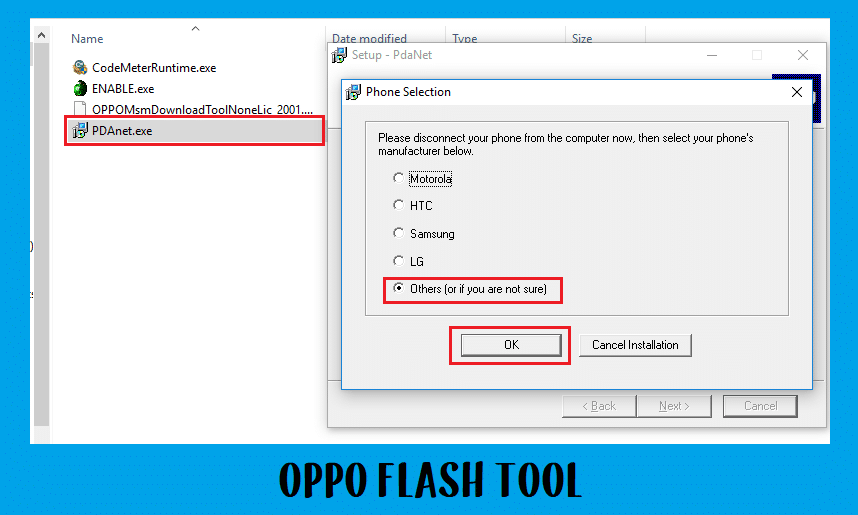
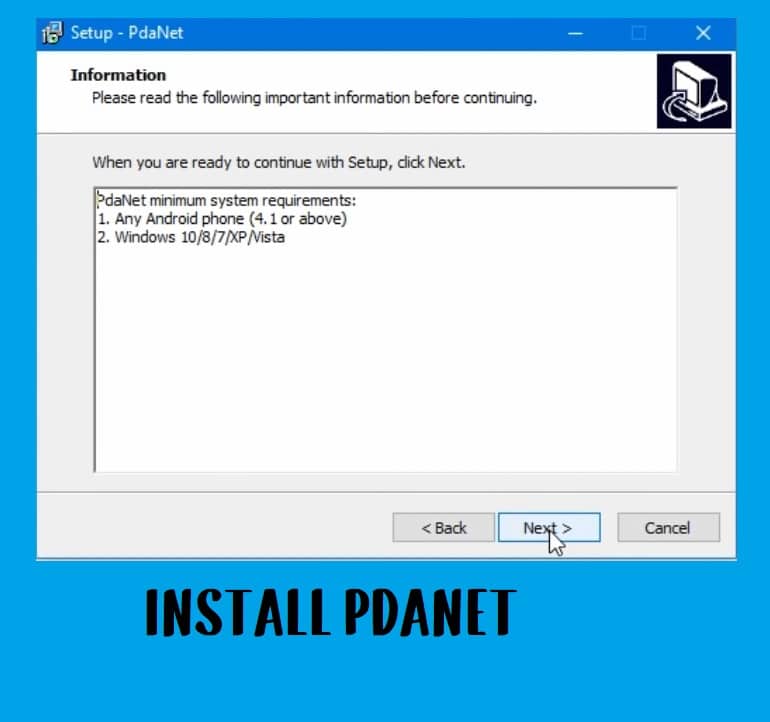
- Run the PDAnet.exe with Administrator permission and install it on your computer.
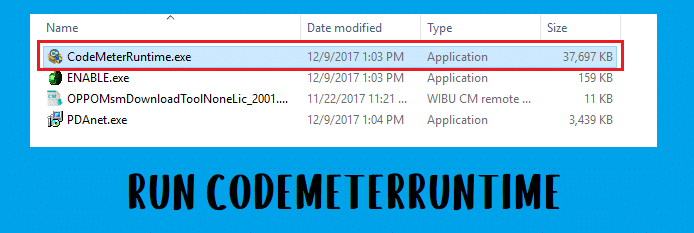
- Now Run & install “Codemeter Runtime.exe“.
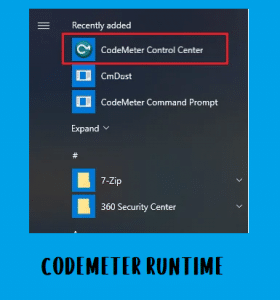
- Once installation has completed, open Codemeter Control Center.
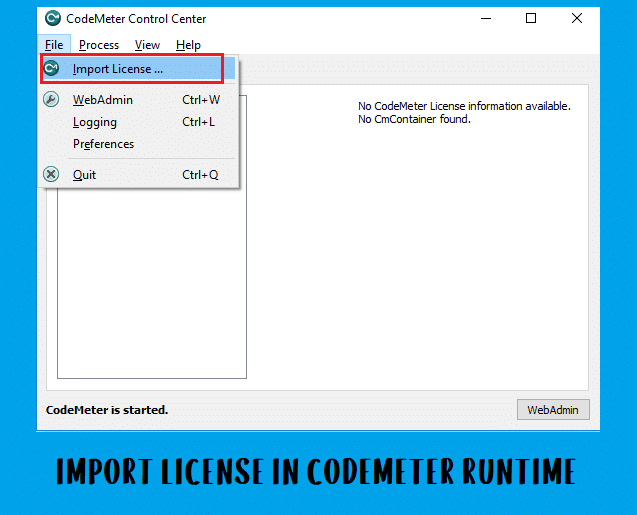
- On Codemeter Control center Click File ===>>>> Import License.
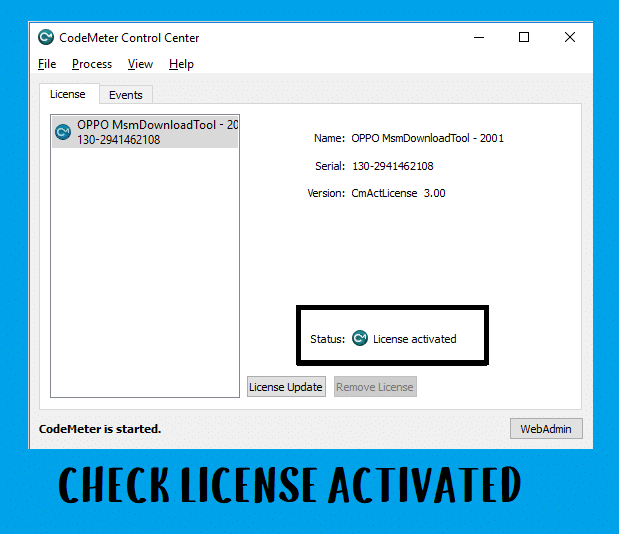
- Now you have to activate the “Oppo MSM Download Tool” license by import the “License” file in “Codemetercontrolcenter.exe“.
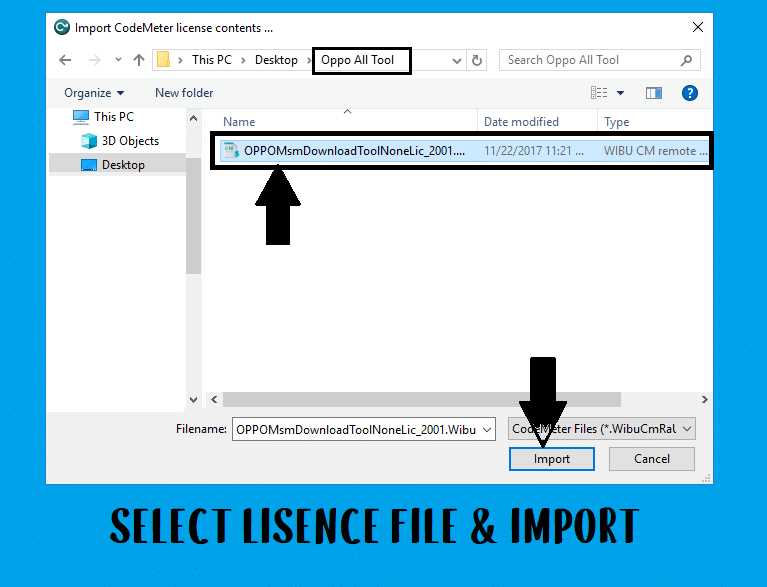
- Browse to the “Oppo All Tool” and select “OPPOMsmDownloadToolNoneLic_2001.WibuCmRaU” file.
- Now you can see License Activated message in Codemeter Control Center.
- Go back to the “Oppo Download Tool” and run DownloadTool.exe.
- Wait for a few seconds to open the tool.

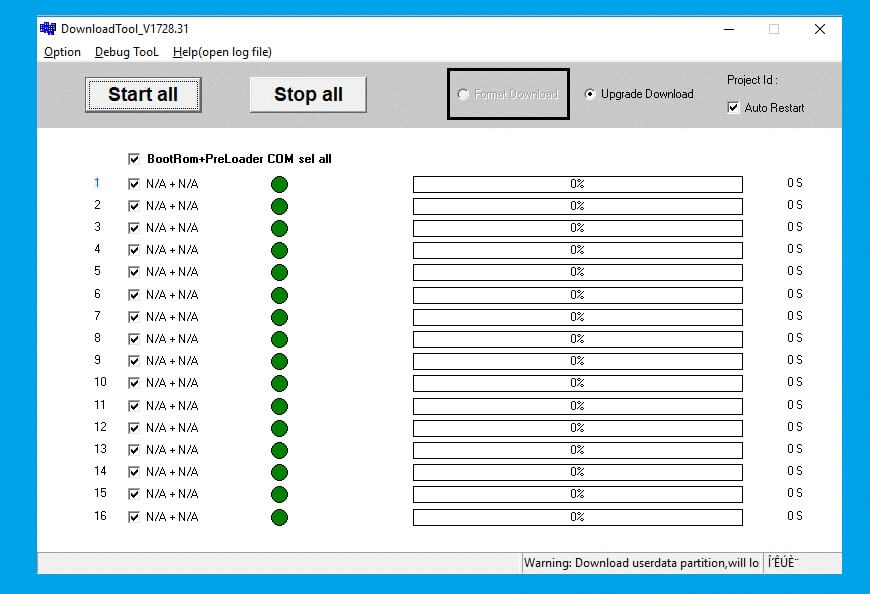
- Check Format Download option is hidden in MSM Download Tool.
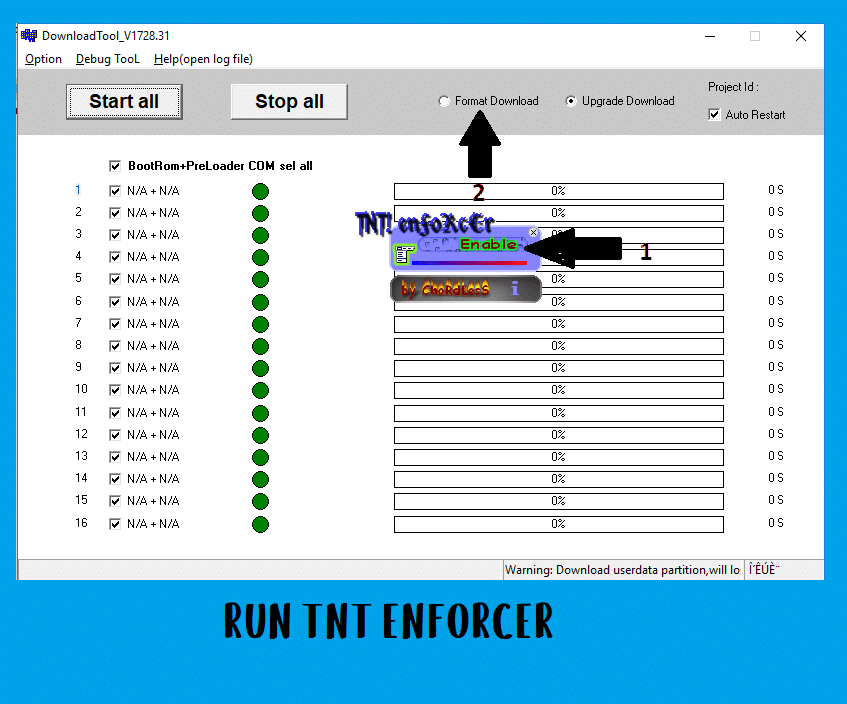
- Go to Oppo All tool folder and run & enable Enable.exe.
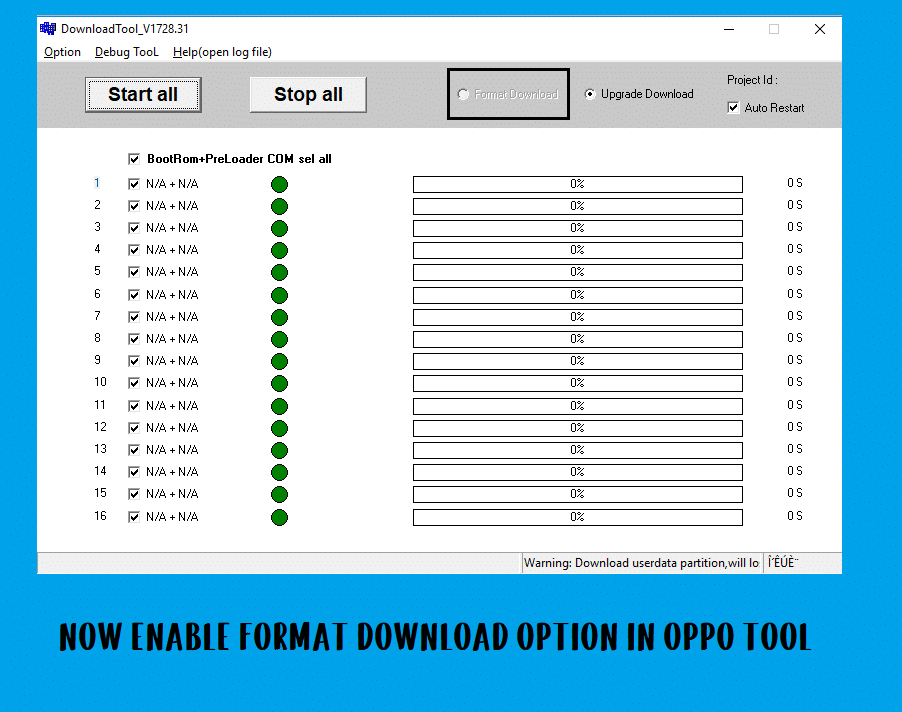
- Go back to the Oppo Tool & click on Format Download.
- Now it will ask you a password type te123 and click on Ok.
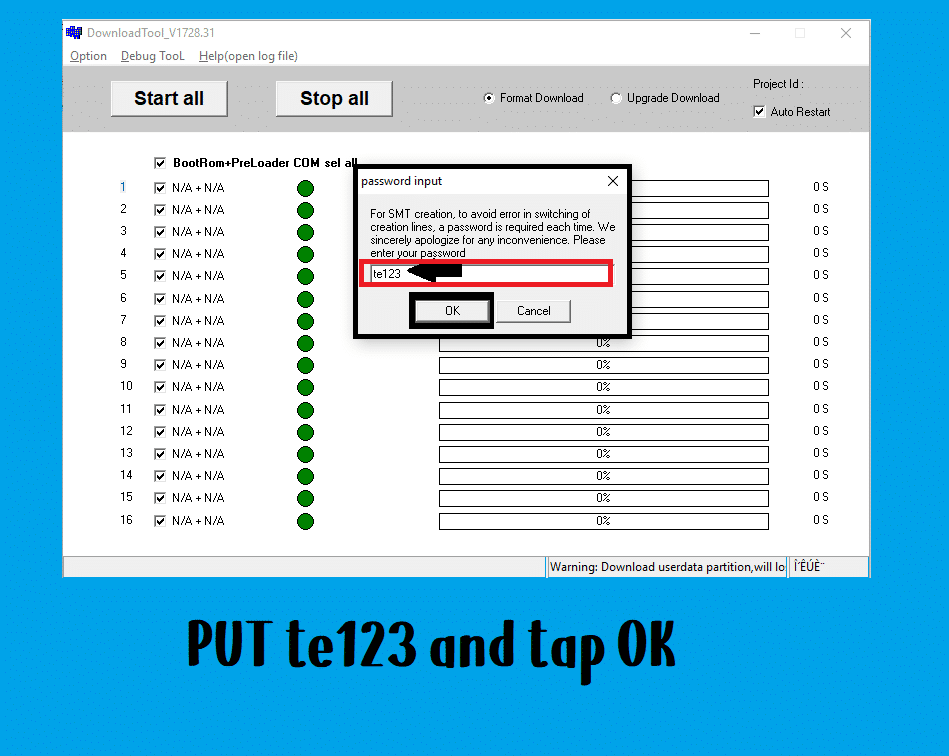
- Check, Oppo MSM Download Tool turns into red color.
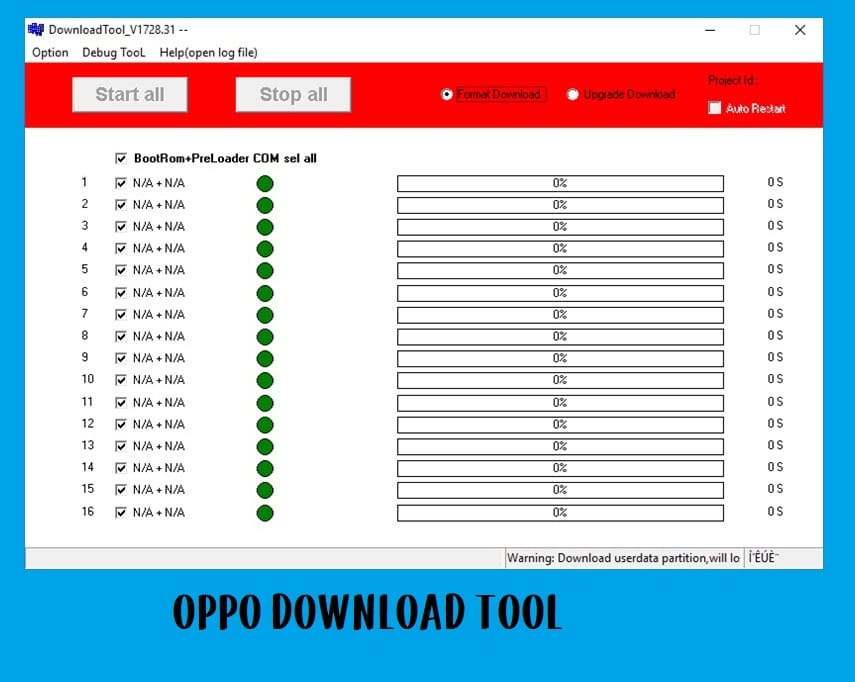
- That’s it.
- Now your tool is ready to flash Oppo/Realme Firmware on your any Oppo or Realme phones in 2023.
FAQ – Frequently Asked Questions
If you still have any queries, you can check our FAQ Section:
Oppo Flash Tool is a firmware flashing tool for all Oppo and Realme Android smartphones that helps to repair, flash, or upgrade any Oppo and Realme mobiles quite easily. So, download the latest oppo MSM download tool.
The flashing procedure is pretty simple, Download the Oppo Firmware according to your device model then paste the firmware in the Oppo Tool folder. Then run the flash tool and connect your phone to the computer.
It is an official flash tool supports: Oppo A1, A3, A37, A37f, A39, A57, A71, A77, Oppo A77 (Mediatek), A83, R11s Plus, R11s, R11 Plus, R11, Oppo F1s, F3, F3 Plus, F5 & F5 Youth, Oppo F7 & F7 Youth, R9s Plus, R9s, R15 Pro, R15.
Read More:
Here, we are near to finish the article.
Hope you learned how to install and use the flash tool properly. But still, if you have any queries related to flash Oppo phones or face any difficulty to use the tool then feel free to contact me in below comment box. Also, give me some suggestions on how I can improve more.
I am really glad to help you out. Thanks a lot for visiting.

