On this page, we’ll guide you on how to unlock Google verification Lock on Teclast T50 Pro (A6D2) using FRP bypass File. The file comes as zip package containing FRP File, USB Driver, Flash Tool & How-to use manual.
What is FRP lock?
Factory Reset Protection (FRP) is a security feature that turned on automatically after adding a Google account and protects the Android phone after a factory reset.
If someone performs resetting the phone without the owner’s authorization, the FRP prevents the access and asks to verify the previously synced credentials to keep personal data safe and makes the phone useless.
Also read: Teclast T50 Max (W1A1) Unlock FRP Google Verification File
⚠️ Disclaimer: This page is provided for informational and educational purposes only. It does not promote or support unauthorized FRP bypass or removal. Always comply with Google and the device manufacturer’s terms & policies to deal with security or verification matters.
Also read: Teclast M50S (M5S1) Unlock FRP Google File
Download Teclast T50 Pro (A6D2) MTK FRP Remove File
Download Teclast A6D2 FRP File enables you to bypass FRP Google Account verification lock using MTK SP Flash tool easily.
File Name: Teclast_A6D2_FRP_File.zip
Size: 100MB
Type: Free
Version: Android 13
Join us on Telegram: t.me/droidsolution
Password: bypassfrpfiles.com
USB Driver: MTK USB Driver
Flash Tool: SP Flash Tool
Other version: Teclast T65 Max (A8D4) Reset FRP Google Verification File
How to Bypass FRP on Teclast T65 Max
- Download Teclast T50 Pro (A6D2) FRP Bypass File File with SP Flash tool to your PC
- Extract the file on your PC
- Make Sure, Install MTK USB Driver, (Skip this if you are already have done).
- Open the Flash tool folder & Run SP Flash tool.exe.
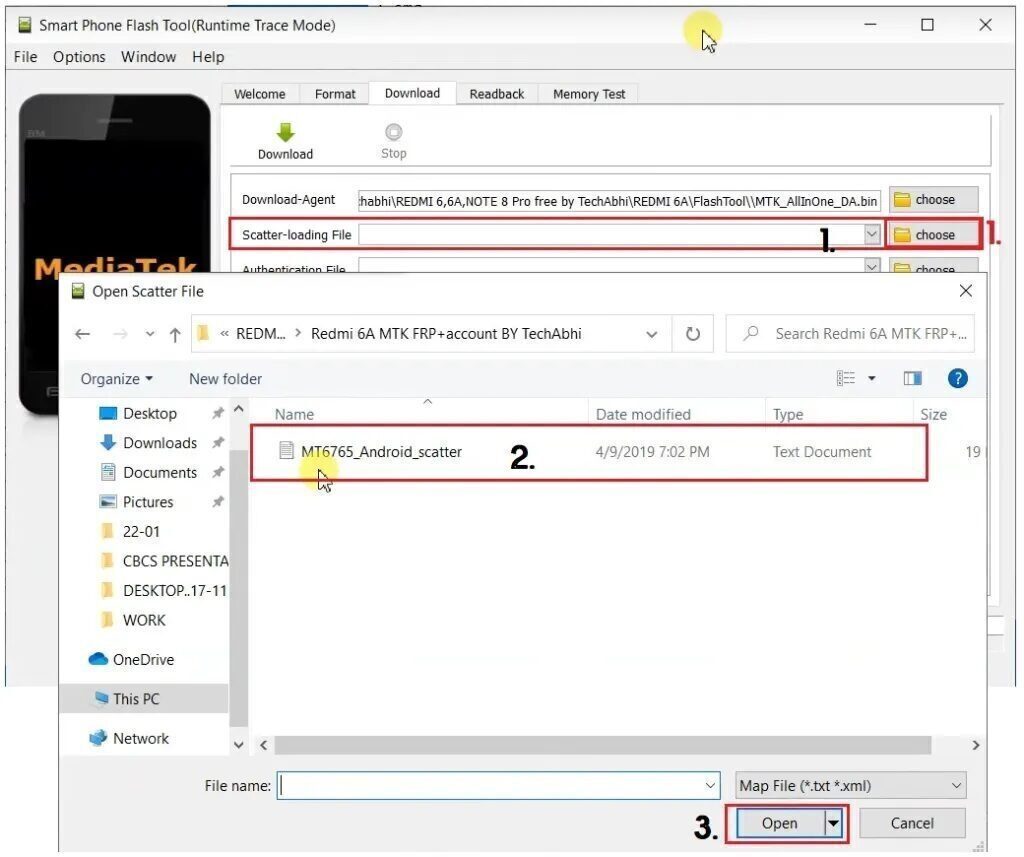
- Click on Choose from Scatter-Loading File Tab and select the MTK_Android_scatter.txt file.
- Tap Open.
- Now Untick the Preloader Partition.
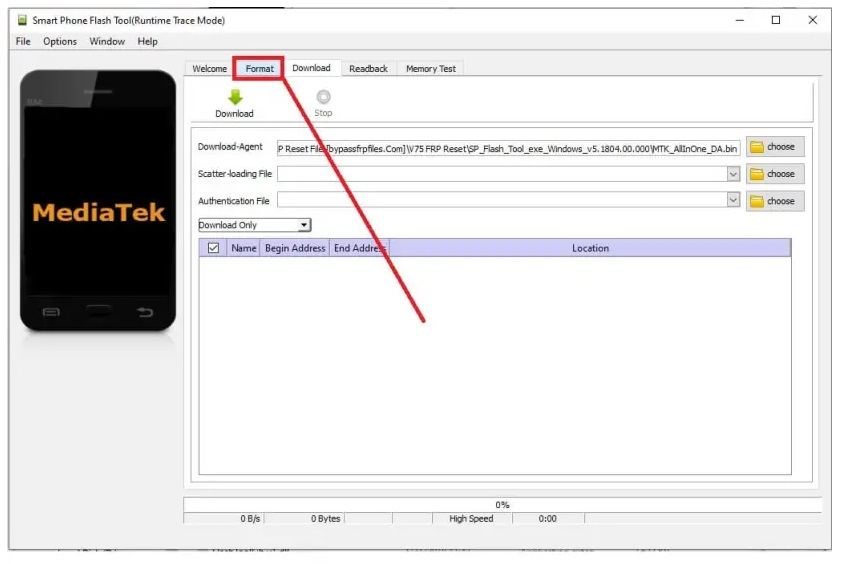
Configure the Flash tool
- Goto Format menu > Select Manual Format Flash.
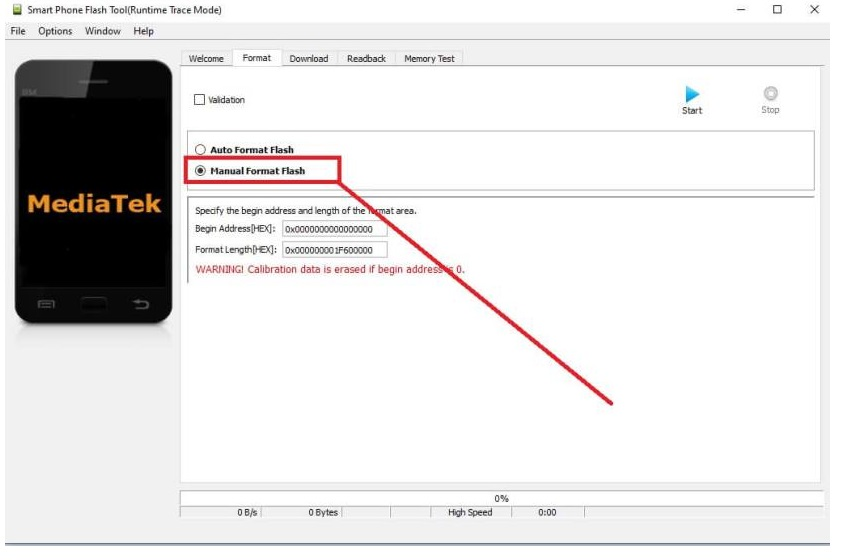
- Copy and Paste the below FRP Address into the SP flash tool
Also read: Teclast T50 (T2A3) Remove FRP Google File
Credit= Bypassfrpfiles.com
━━━━━━━━━━━━━
🔰 FRP Erase Address:━
Start_addr: 0x8108000
Size: 0x100000
🔰 USERDATA Erase Address:━
━━━━━━━━━━━━━━
Start_addr: 0x297800000
Size: 0xc0000000
🔰 PERSIST Erase Address:━
━━━━━━━━━━━━━━
Start_addr: 0x13208000
Size: 0x35f8000

- Click START.
Connect Teclast T50 Pro Phone to Windows
- Power Off your Teclast T50 Pro phone.
- Connect your device to computer via USB cable.
- Run MTK Auth bypass tool & Click Disable Auth
- This will disable auth proctection.

- Open Device Manager > Check the COMPORT Number.
- Select the COMPORT number (In my case I have COM9).
Start unlocking
- The unlocking process will begin.
- It will take some time to finish.
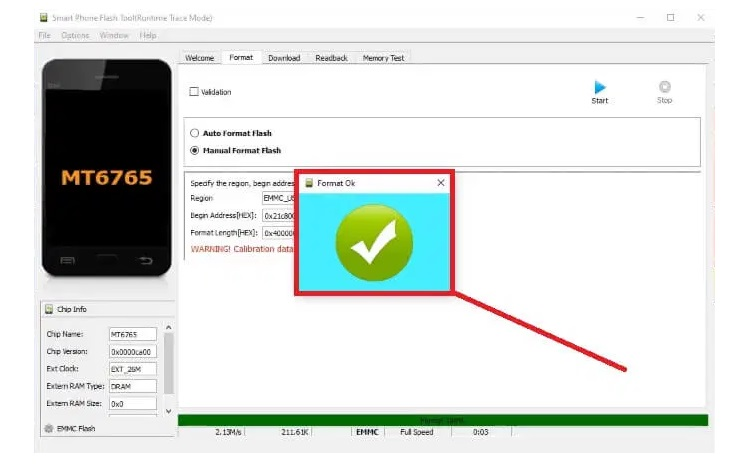
- Once finished, disconnect and Power On your Teclast T50 Pro.
- Setup all initial steps.
- That’s it.
Method 2: Teclast T50 Pro Reset with FRP Tool
- First, Download Teclast T50 Pro FRP File.
- After that, Download & install the BFT Tool by BossV
- Visit, FRP Tool page for installation instructions.
- Once you’ve done, run BFT.exe as Admin.
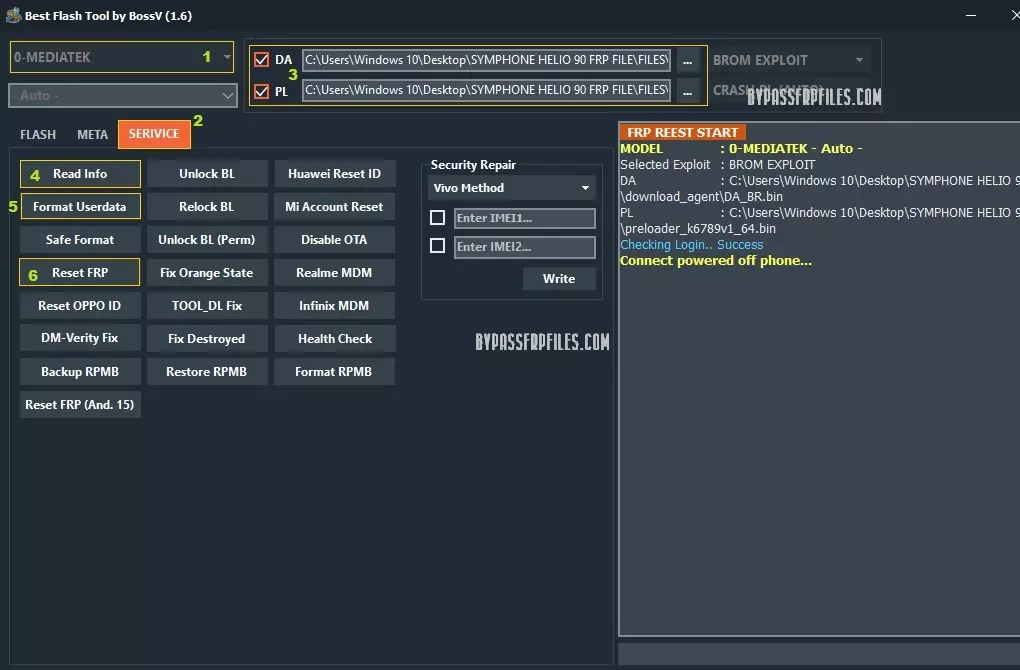
- Go to, MediaTek tab.
- Select the DA & Preloader file from FRP File.
- Then, navigate to Service tab & Click Reset FRP.
- Now, power off your Teclast T50 Pro & connect to Windows.
- The phone will be detected & bypass the FRP lock.
- That’s it.
More Teclast FRP Guide:
- How to Teclast T40 HD (T6A1) Remove FRP Google Lock
- Teclast P85X (G6K3) FRP Google verification Reset File
- Android Utility Tool
- Teclast T50 Max (W1A1) Unlock FRP Google Verification File
Read Me:
This FRP Unlock File solution is the quick and simple solution to Reset Google lock on Teclast T65 Max. However, only proceed with caution and use at your own risk as it has some serious consequences.
Booting Process: After successfully performing the unlocking process, the device will take between 1 and 5 minutes to booting completely. After that, you can setup the initial process much like new phone.
USB Driver: To use the FRP Files, you’ll need to install USB Driver on your Windows computer to fix connection related issues, head over to our MTK USB Driver page to download the latest version.
Flash Tool: In this tutorial, we’ve been using SP Flash Tool for unlocking or flashing firmware on your phone, Also, you can use BFT Best Flash Tool or UnlockTool, TSM Tool, etc.
Read More: Android Utility Tool
Alternative Solution: Also, you can use premium & freebie tools to unlock Teclast T50 Pro phone. You can head over to our,
- BFT Best Flash Tool by BossV (Free)
- UnlockTool (Paid)
- King Soft Team Tool
Also read: Teclast M50 (G5M2) Unlock FRP Google Verification File