On this page, we will provide you the link to download Blackview Oscal Tank 1 FRP Google unlock File to bypass the Google verification lock with just one click using the MTK SP Flash tool. The file comes as zip that includes FRP File, USB Driver, Flash Tool & comprehensive step-by-step How to use manual.
What is Factory Reset Protection?
Factory Reset Protection (FRP) is a security feature that turned on automatically after adding a Google account and protects the Android phone after a factory reset.
If someone performs resetting the phone without the owner’s authorization, the FRP prevents the access and asks to verify the previously synced credentials to keep personal data safe and makes the phone useless.
Also read: Bypass Blackview BV9300 Pro Google FRP lock
⚠️ Disclaimer: This page is provided for informational and educational purposes only. It does not promote or support unauthorized FRP bypass or removal. Always comply with Google and the device manufacturer’s terms & policies to deal with security or verification matters.
Download Blackview Oscal Tank 1 FRP Unlock File
The Blackview Oscal Tank 1 MTK FRP File enables you to bypass FRP Google Account verification lock using SP Flash tool easily. The procedure will requires Windows computer & the following files.
File Name: Blackview_Oscal_Tank_1_FRP_File.zip
Size: 5MB
Type: Free
Version: Android 15
Join us on Telegram: t.me/droidsolution
Password: bypassfrpfiles.com
USB Driver: MTK USB Driver
Flash Tool: SP Flash Tool
Also read: Blackview BL8800 Pro 5G Google FRP Unlock File
How to Blackview Oscal Tank 1 Bypass FRP Google Lock
- Download Blackview Oscal Tank 1 FRP Reset File File with SP Flash tool to your PC
- Extract the file on your PC
- Make Sure, Install MTK USB Driver, (Skip this if you are already have done).
- Open the Flash tool folder & Run SP Flash tool.exe.
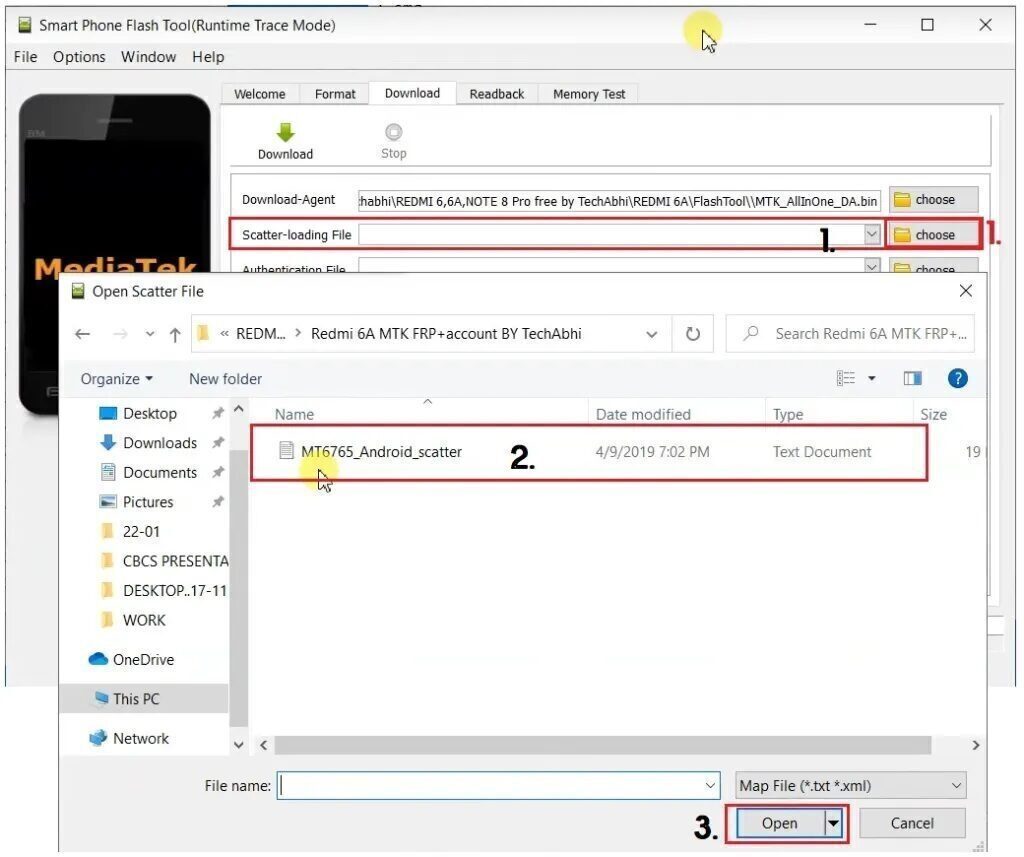
- Click on Choose from Scatter-Loading File Tab and select the MTK_Android_scatter.txt file.
- Tap Open.
- Now Untick the Preloader Partition.
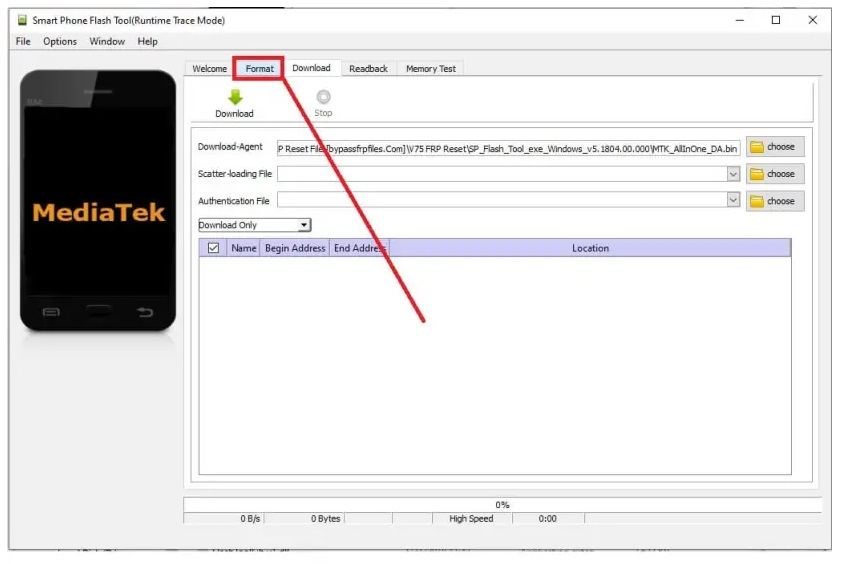
Configure the Flash tool
- Goto Format menu > Select Manual Format Flash.
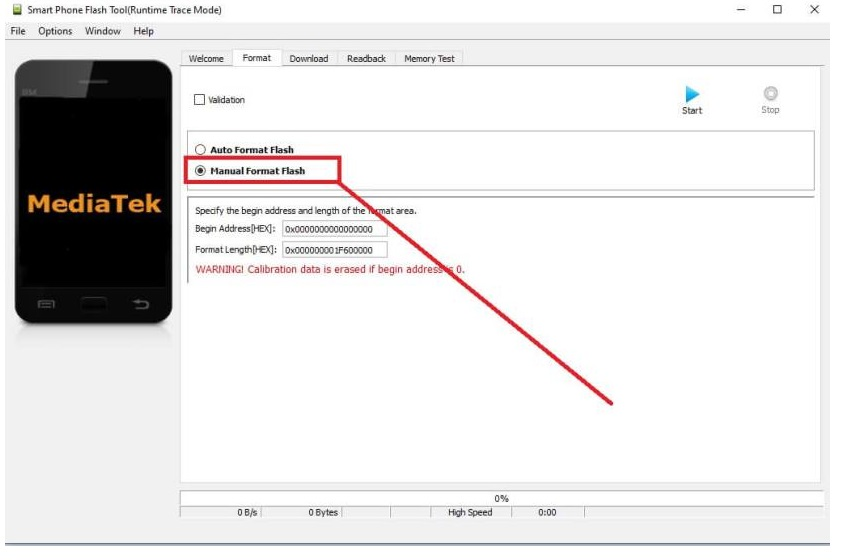
- Copy and Paste the below FRP Address into the SP flash tool
Also read: Blackview BV5500 Plus FRP Bypass
Credit= Bypassfrpfiles.com
━━━━━━━━━━━━━
🔰 FRP Erase Address:━
Start_addr: 0x1508000
Size: 0x100000
🔰 USERDATA Erase Address:━
━━━━━━━━━━━━━━
Start_addr: 0x23B000000
Size: 0x38014F8000
🔰 PERSIST Erase Address:━
━━━━━━━━━━━━━━
Start_addr: 0xDCA2000
Size: 0x3000000

- Click START.
Connect Blackview Oscal Tank 1 Phone to Windows
- Power Off your Blackview Oscal Tank 1 phone.
- Connect your device to computer via USB cable.
- Run Auth tool & Click Disable Auth
- This will disable auth proctection.

- Open Device Manager > Check the COMPORT Number.
- Select the COMPORT number (In my case I have COM9).
Start unlocking
- The unlocking process will begin.
- It will take some time to finish.
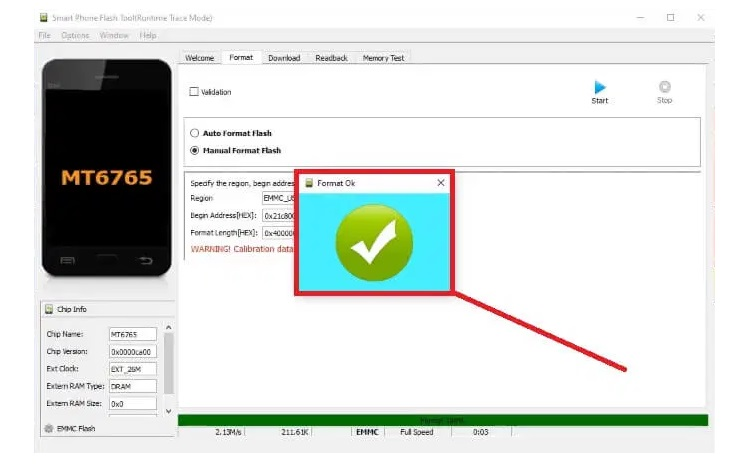
- Once finished, disconnect and Power On your Blackview Oscal Tank 1.
- Setup all initial steps.
- That’s it.
Method 2: Blackview Oscal Tank 1 Reset with FRP Tool
- First, Download Blackview Oscal Tank 1 FRP File.
- After that, Download & install the BFT Tool by BossV
- Visit, FRP Tool page for installation instructions.
- Once you’ve done, run BFT.exe as Admin.
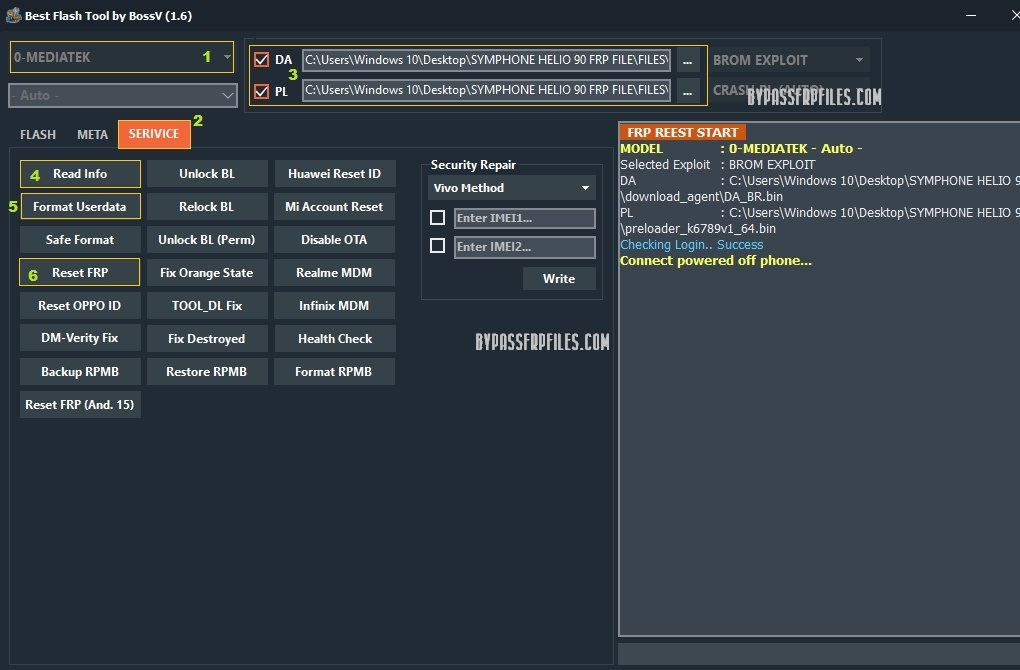
- Go to, MediaTek tab.
- Select the DA & Preloader file from FRP File.
- Then, navigate to Service tab & Click Reset FRP.
- Now, power off your Blackview Oscal Tank 1 & connect to Windows.
- The phone will be detected & bypass the FRP lock.
- That’s it.
More Blackview FRP Guide:
- Blackview Tab 8e FRP Google lock Remove File
- Blackview N6000SE Bypass Google FRP
- Android Utility Tool
- Blackview Tab 6s Unlock Google Verification (FRP) File
Read Me:
This FRP Reset File solution is one of the easiest solution to Reset Google lock on Blackview Oscal Tank 1. However, only proceed with caution and use at your own risk as it has some serious consequences.
Booting Process: After successfully performing the unlocking process, the device will take between 1 and 5 minutes to booting completely. After that, you can setup the initial process much like new phone.
USB Driver: To use the FRP Files, you’ll need to install USB Driver on your Windows computer to fix connection related issues, head over to our MTK USB Driver page to download the latest version.
Flash Tool: In this tutorial, we’ve been using SP Flash Tool for unlocking or flashing firmware on your phone, Also, you can use BFT Best Flash Tool or UnlockTool, TSM Tool, etc.
Read More: Android Utility Tool
Alternative Solution: Also, you can use premium & freebie tools to unlock Blackview Oscal Tank 1 phone. You can head over to our,
- BFT Best Flash Tool by BossV (Free)
- UnlockTool (Paid)
- King Soft Team Tool
Also read: Blackview BV6600 Pro Remove Google FRP File