If you forgot the last Gmail information used on your Blu phone after the factory reset & facing challenges to regain access, then, the following tutorial will be helpful. In this tutorial, we’ll show you how to bypass Google FRP verification lock on the Blu Bold K50 [Android 14] without using a PC.
By following this procedure you will need FRP bypass tool & FRP Bypass Apk to access the settings and some other apps to overcome the situation & regain access. Let’s Start the process.
Caution: This method is for device owners and only for educational purposes, meaning trying this method on a stolen device is a serious crime, it may lead you to the jail.
More: Bypass Google FRP BLU Bold M6 2021 Android 11 Go
How to Bypass FRP Lock on Blu Bold K50 (Android 14)
-First, Power On your your Blu phone.

-Connect WiFi.
-After that, go back to the first (Hi There) page.

-Tap on “Emergency Call”.
-Dial an Emergency Number, e.g 112.
-Emergency Call will load your Current location.
-Wait for load your current location.

-Click on Location > Tap Skip.
-Google Maps screen will open, Click Share.
–The Share Popup will appears > Select Messaging App from here.
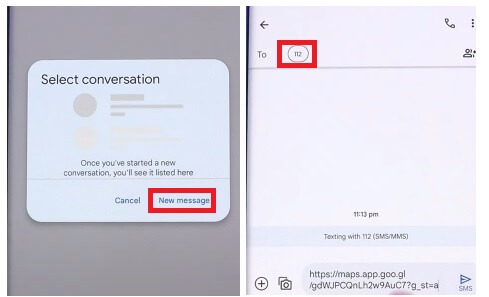
–Now it will lead you to the Messaging app > Select New Message.
–On the TO section > Type any random number.

–Now a link will be pasted on the Text field.
–Clear the Field and type: www.youtube.com and Click Send.
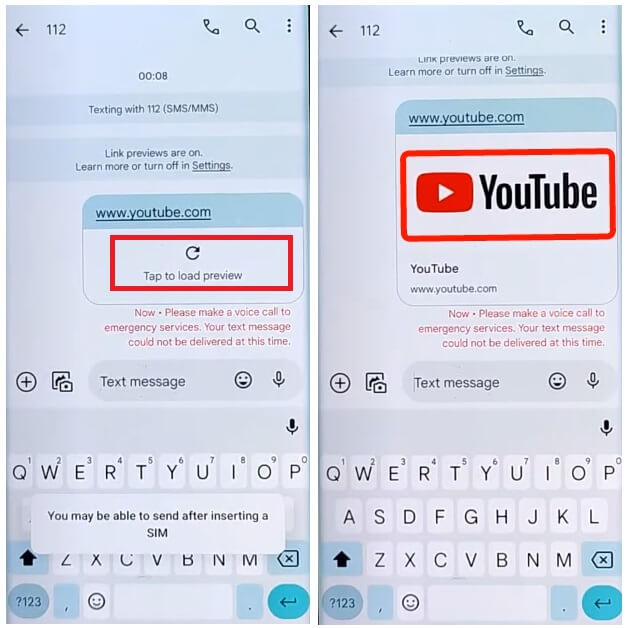
–Now click on the Tap to Load Preview, then click on YouTube icon.
–Now the YouTube App will opened.
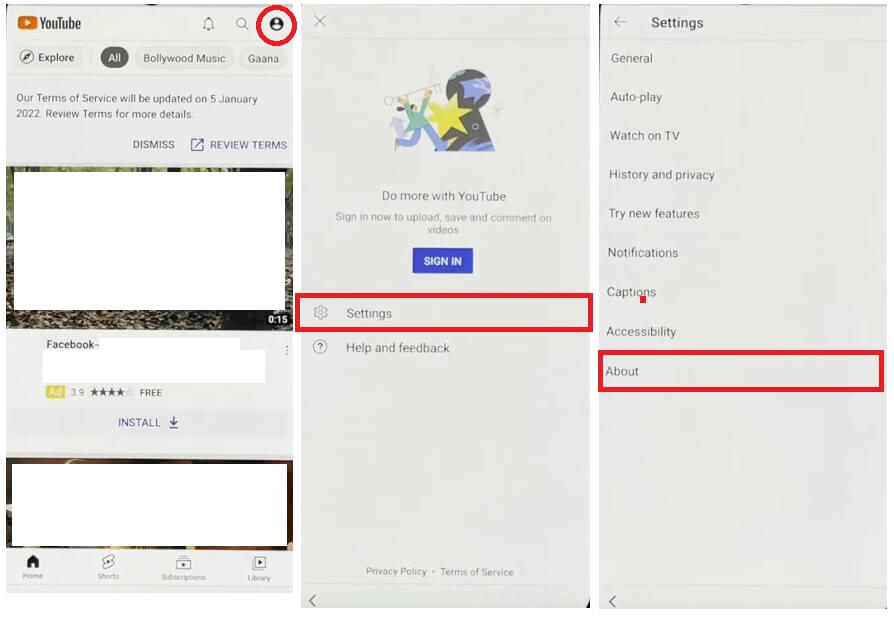
–Check on the top-right corner, Select the User icon.
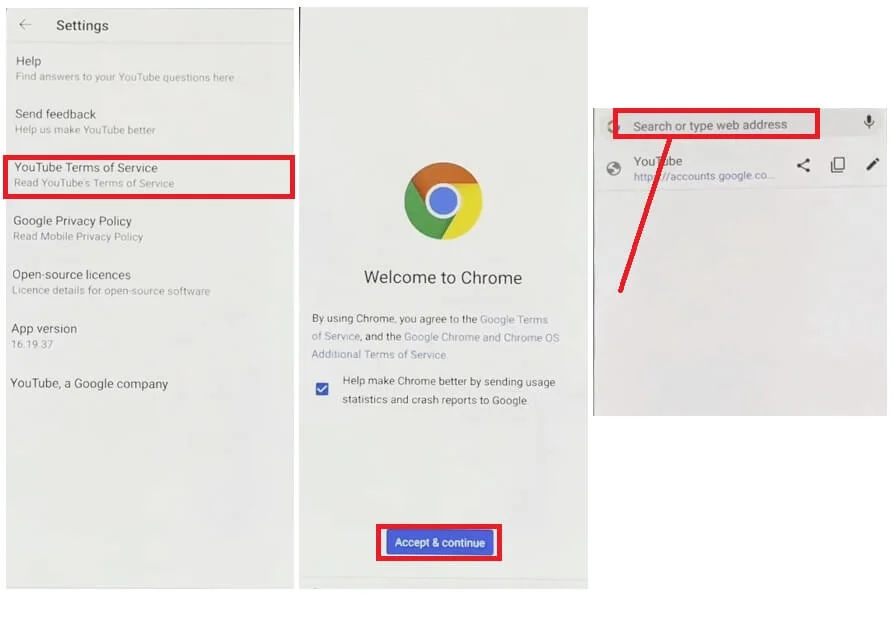
–Tap on Settings > About > YouTube Terms of Service.
–Now it will lead you to the Chrome Browser.
Open Phone Settings App via FRP tools Page:
–Tap on the Search bar and type any of these two below URL’s.
–Go to the FRP bypass APK > Tap To Open FRP APPS section.
–Select Open Device Settings > Tap Open.
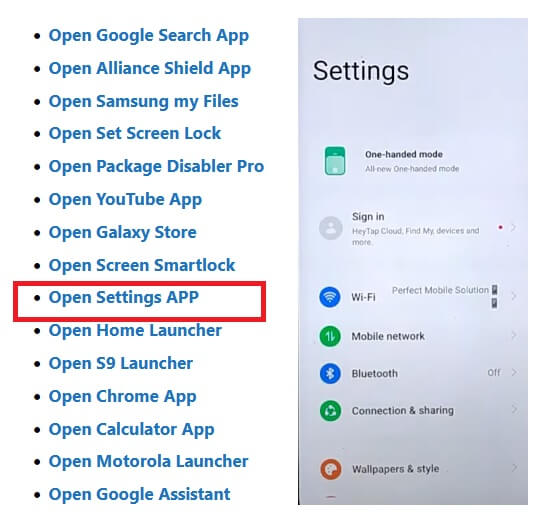
–Now it will lead you to the Device Settings.

-Next, Go down & select “Apps” > “App Battery Usages”.

-Next, Select Google Play Services >
-Force Stop & Disable it.

-After that, Select Android Setup & Force Stop it.
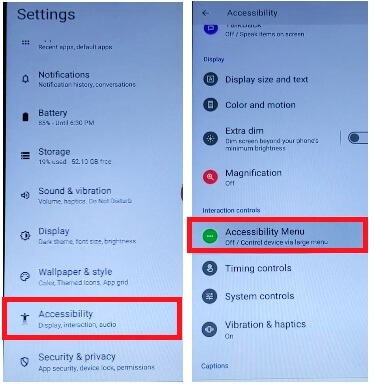
-Then, Go to Back to the Settings main menu > Select Accessibility >

-Hit > Accessibility menu > Accessibility menu shortcut >Enable it.
-Next, Go back to the very first Welcome page on your Blu Bold K50 phone.
Enable Play Services
-Now Click on Accessibility menu shortcut icon > Select Accessibility Settings.

-Click on Talkback > Settings.

-Next, Tap on Braille Keyboard > Set up Braille Keyboard > Settings.
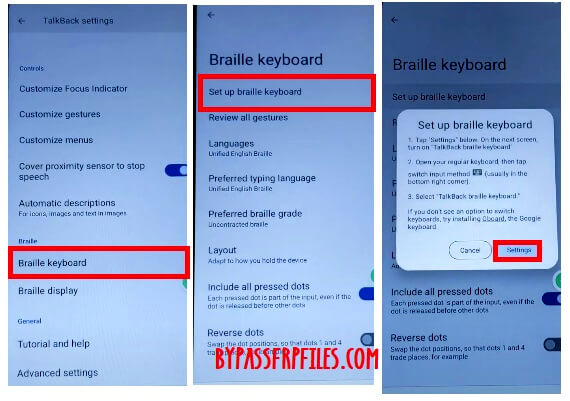
-Select Gboard from the list.

-Then, Share Gboard > Share.

-Sharing Window will appear > Select Chrome from the list.
-The chrome Browser will open,
-Open our FRP bypass apps page to Remove or Bypass FRP Blu Bold K50 Android 14 phone.
–Tap on the Search bar and type any of these two below URL’s.
–Select Open Device Settings > Tap Open.
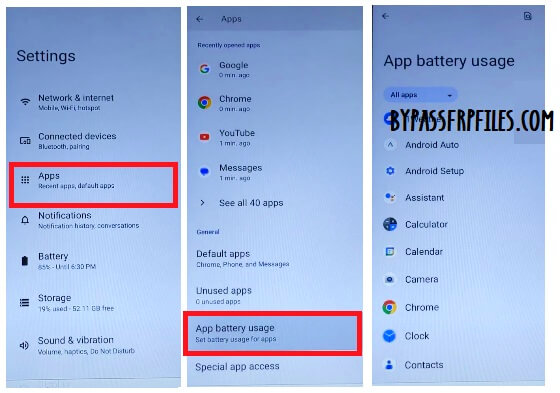
-Next, Go down & select “Apps” > “App Battery Usages”.
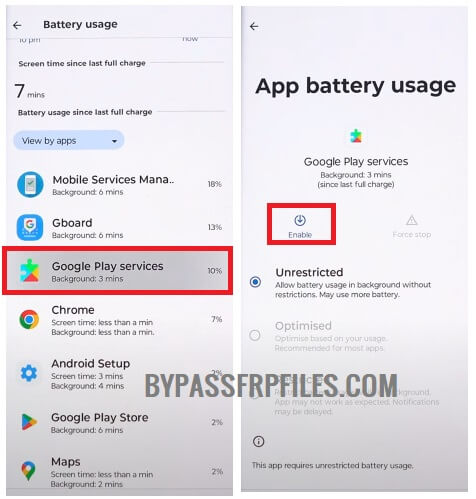
-Select Google Play Services & Enable it.
Final Steps: Setup the Device
-Hitting back arrow several times to go back to first (Hi There) screen.
-Click Start > Next.
-We are almost done from Remove Google FRP Blu Bold K50 Android 14 version.

-On the “Getting your phone ready” screen > Tap the Back key to go back to the “Connect to WiFi” Screen.

-From there, hit on > Setup offline > Continue.

-Next, Complete the Setup wizard steps without connecting to WiFi.
-You can easily complete the setup process.
-Done.